Lab 7: Go! Turtlebot!
Overview
In this lab, we will put everything together and apply what we have learned so far in ROS on the real Turtlebot. The task is to use Turtlebot and perform left-wall following in a real-world environment without colliding with obstacles or walls.
The implemented ROS node of Lab 5 will be used with proper modifications, to run onboard the Turtlebot to complete the navigation scenario. Please use the structure from the sample code given below. In the end, a demonstration of the complete wall-following behavior will be performed for the system’s evaluation. Each team will have one Turtlebot to work with and do the demonstration.
A successful demo on Gazebo is required before any implementation on the real robot.
Submission
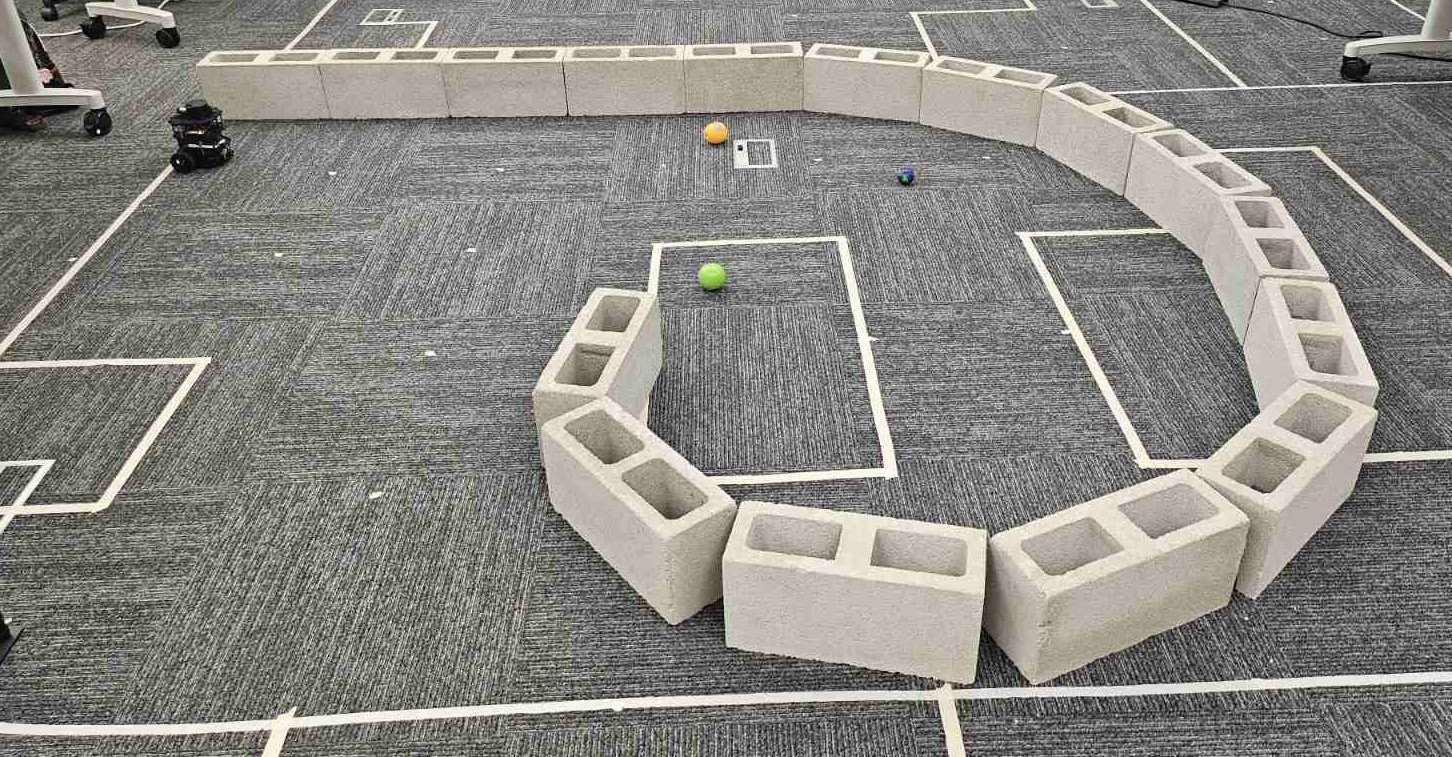
In the lab report include explanations and screenshots from the robot’s navigation scenario.
Due time: 02/12/2026
- Grading rubric:
+10% Communicate successfully with the real robot
+40% Demo the task on the real robot
+10% Avoid collision with wall.
+10% Reach the goal area and kick the balls.
+30% Lab report with included ROS Node code and remarks and lessons learned from the lab.
Connection with the robot and roslaunch
As we saw in the first labs, one of the ways to connect to the robot is via Secure SHell (SSH). Thus, in this case, you need first to connect to the local Wi-Fi router (for further information please ask the Teaching Assistant) and then to the robot. To connect to the robot, you can open an SSH connection terminal,
ssh pi@192.168.0.X
where X is the final digits of the robot’s IP. Since you are connected to the remote shell of the robot, you can navigate in the ~/catkin_ws folder of its ROS workspace.
First we need to enable the robot bringup ROS node. Thus, execute in the above terminal,
roslaunch turtlebot3_bringup turtlebot3_robot.launch
To execute your locally saved ROS node, you need first to secure copy (scp) it in the robot’s directory and then execute it. So, open a terminal in your VMware and execute,
scp `path_to_your_script` pi@192.168.0.X:/home/pi/catkin_ws/src/ee106w26/scripts/left_wall_following.py
Then, on the same terminal follow the above instructions of performing SSH, and obtain access on the TurtleBot3 by a new terminal.
As the file is copied on the Burger, you can navigate to the ee106w26 ROS package, and provide permission on the copied ROS node with the command chmod +x left_wall_following.py. To execute your ROS node on the Turtlebot3, perform the following command on the SSH terminal,
rosrun ee106w26 left_wall_following.py
To interrupt the behavior, you can cancel the execution of the ROS node in the same way as the Gazebo. In case you want to perform changes on your code, you can do this locally on your computer, and then copy back the new updated code on the robot.
ROS Node template for the Left Wall-Following
#!/usr/bin/env python3

import rospy
import roslib
roslib.load_manifest('ee106w26')
import sys
import numpy as np

#
# TODO : include the imports of the used libraries...
#

class turtlebot_behavior:

  def __init__(self):

    #
    # TODO : initialize the Publishers and Subscribers, as well as,
    # the FSM state and transition parameters.
    #

    self.rate = rospy.Rate(10.0)

    #
    # TODO : add a While loop until the ROS node is shutdown, to update the FSM states and send the command velocities on the robot, given the computed next state. You can use this while loop to listen on the TF information between the left_limit and the base_scan to use it in the LiDAR callback function.
    #

    # while ...

        # listen to TF and update self.trans and self.rot

        # if self.state == "forward":
        #     if self.extreme_left:
        #         ...

        # send velocity command ...
        # self.rate.sleep()

  # this is the LiDAR callback that will update our FSM transition parameters

  def callback(self,data):

    # min_dist = np.inf
    # for r in data.ranges:

        # check if the measurement "r" is between the left_side rad range. If yes, convert it to x,y, compute it's spatial transform on the "left_limit" frame, and its distance from the origin. Update the min_dist parameter given the computed measurement distance.

    # As the for iteration is completed, check the mininum distance of the left side and update the FSM transition parameters. These updated transition parameters will update the FSM state, on the next iteration step in the class __init__ function.

  def calculate_position_of_range(self, range, idx, angle_increment, angle_min):

    if str(range)=="inf":
          rospy.loginfo("The provided range is infinite!")
          return -1

    theta = idx * angle_increment + angle_min
    x = range * np.cos(theta)
    y = range * np.sin(theta)

    return x,y

def main(args):
    rospy.init_node('left_wall_following', anonymous=True)
    ic = turtlebot_behavior()
    try:
        rospy.spin()
    except KeyboardInterrupt:
        print("Shutting down")

if __name__ == '__main__':
    main(sys.argv)
ROS Bag Recording and Data Logging (Optional)
One of the ways to record the data being produced during a ROS scenario you can use the ROS bag command. Specifically, this command enables the ROS data logging feature to capture information that is being published via the ROS Topics and save it locally. The information is saved in ROS Bag file format (.bag), which can be accessed at a later time and be replayed back to replay the captured data of the scenario.
In our scenario, the ROS Bag recording can be used to save the implemented scenario of the TurtleBot3 and then can be replayed to visualize the data captured during the real scenario. To save the ROS Bag you can execute while the robot is running,
rosbag record -a
The locally saved ROS Bag can be replayed back, by doing,
rosbag play name_of_the_rosbag.bag --clock -l
By using the Space button you can pause the replay. Additionally, by using the rostopic list command you can see that the captured ROS Topics are being replayed back.
Lab Rules
Safety is always the top priority.
No food or beverage allowed in the lab.
Report any suspicious cables, wires, etc.
Organize your station before you leave.
Organize wires, cables, etc.
Do not leave your personal information on the robot.
Create your own folder when you work, and delete code when you leave.
The robot is shared by two lab sections.
Do NOT make any changes to the wiring on the robot.
Please save the battery (recharging takes time), and charge the robot if you do not have it running.